Export a client’s full history to Excel
One button on any client profile builds a formatted Excel workbook of everything they’ve logged: profile, progress, workouts, check-ins and nutrition.
See where it fits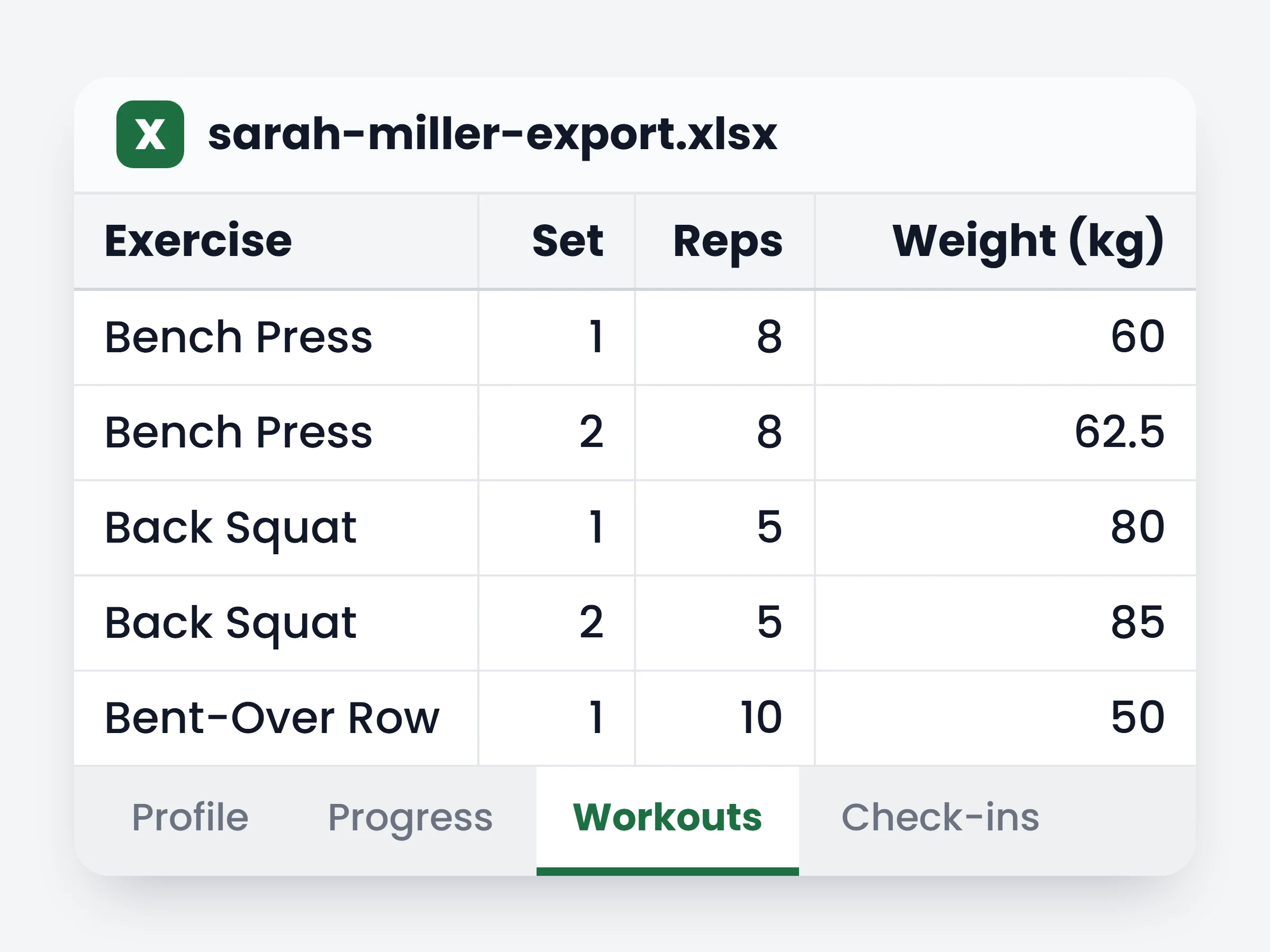
How trainers can use it
Answer a data request in one click
A client exercising their right to a copy of their data gets a complete, readable file — not a screenshot tour of the dashboard.
Hand over a leaving client’s history
When someone moves on, their training and nutrition record goes with them instead of disappearing.
Slice the numbers your own way
Pivot a year of logged sets, chart adherence, or build the review you want in a spreadsheet you control.
A client asks for their data. Or they leave, and you want their history somewhere permanent. Or you just want to slice a year of training in a spreadsheet. One button on their profile builds the whole thing as an Excel workbook — formatted, sheet by sheet, ready to open or hand over.
How it works
- 01
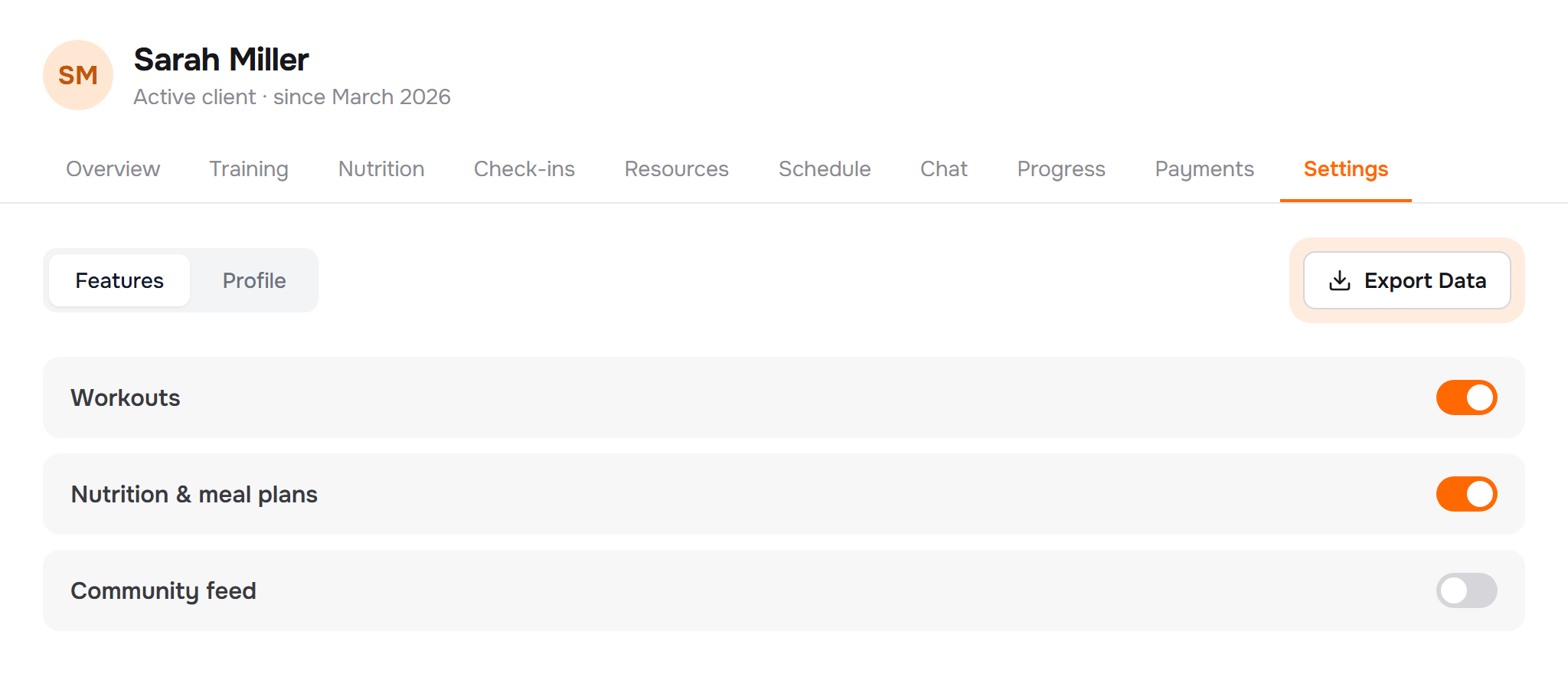
Open the client’s Settings tab
Export Data sits at the top of the tab, on every client profile and on every plan.
- 02
We build the workbook
Each area of their history becomes its own sheet, with bold headers, frozen titles and columns sized to fit. Anything they never used is left out rather than shipped empty.
- 03
It downloads, ready to use
A single .xlsx named after the client and the date. Open it in Excel, Numbers or Google Sheets — or forward it as it is.
Sheets in the workbook
- Profilecontact details, goals, height, starting weight, client since
- Progressweight, body fat, muscle mass and every body measurement you track
- Workoutsone row per logged set — exercise, reps, weight, duration
- Check-insone row per question, with the answer they gave
- Nutritionthe full food diary plus the macro goals that applied
- Habits & training plansdaily completions, streaks, and the plans they were assigned
It is already in your account.
Every update ships to every trainer automatically. New here? Start free and try it with your own clients.