
Import and export
Export a training plan to Excel to edit it in a spreadsheet, share it or keep a backup. Import brings it back into the builder.
Exporting
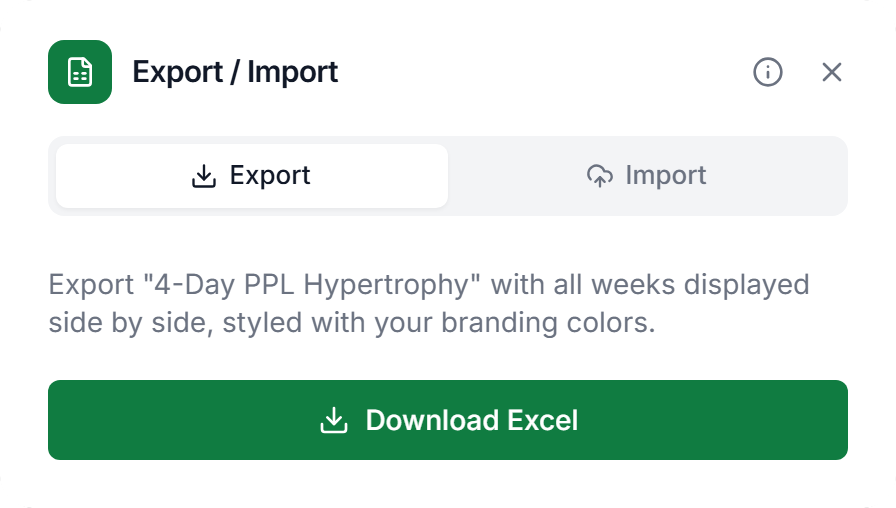
Open a plan in the builder, click the ⋯ menu at the top right and choose Export Excel. In the Export / Import dialog, Download Excel saves the file. Plans with the Fixed layout can’t be exported.
- Layout
- Every week side by side, days down the side, and each exercise’s sets as rows.
- Columns
- Reps, Weight, RPE, % 1RM and Rest. A column you hid in the plan stays hidden. The file is styled in your brand colors.
- _metadata
- A sheet with this name holds the plan structure, so Scraler can restore the file exactly. Leave it alone.
Importing
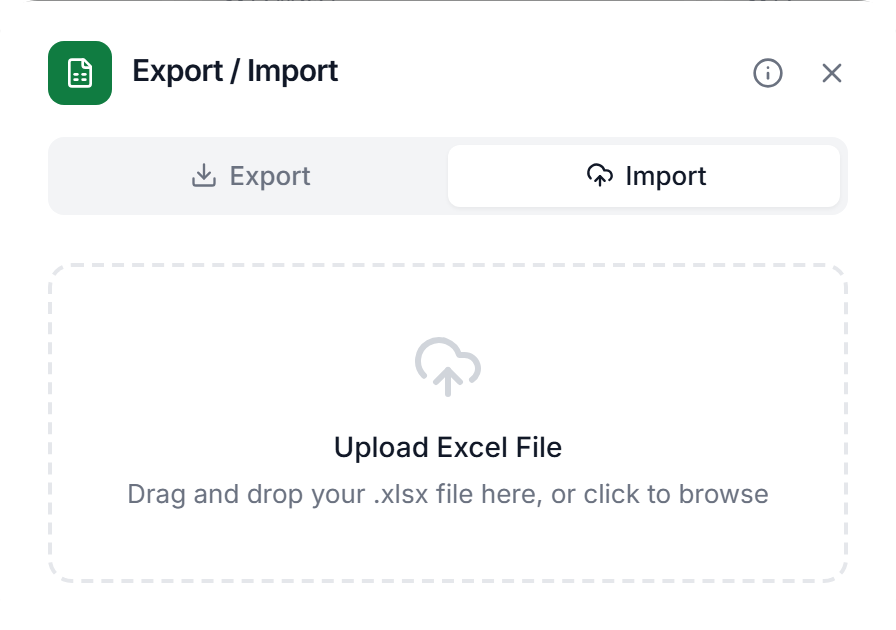
In the same dialog, open the Import tab, then drop an Excel file on the dotted area or click it to browse. Only .xlsx and .xls files are accepted.
- Scraler file
- A file you exported from Scraler, with its _metadata sheet, is restored exactly and updates the plan you have open. No AI is involved. Change the numbers in Excel, then import.
- Other file
- Any other spreadsheet is read by AI. It finds the weeks, days and exercises, matches them to your library and saves the result as a new plan, which opens in the builder. Exercises it can’t match stay as custom exercises.
- AI limits
- An AI import counts toward your monthly AI generations on Plus and is unlimited on Premium and Ultimate. On Basic it is blocked.
An AI import has no review step. Check the new plan in the builder before you assign it.
Professional training plans, zero hassle
Export to Excel, share with clients, and re-import whenever you need.
Get Started Free