
Client Guide
Everything you need to know about using your fitness dashboard, tracking workouts, following meal plans, and communicating with your trainer.
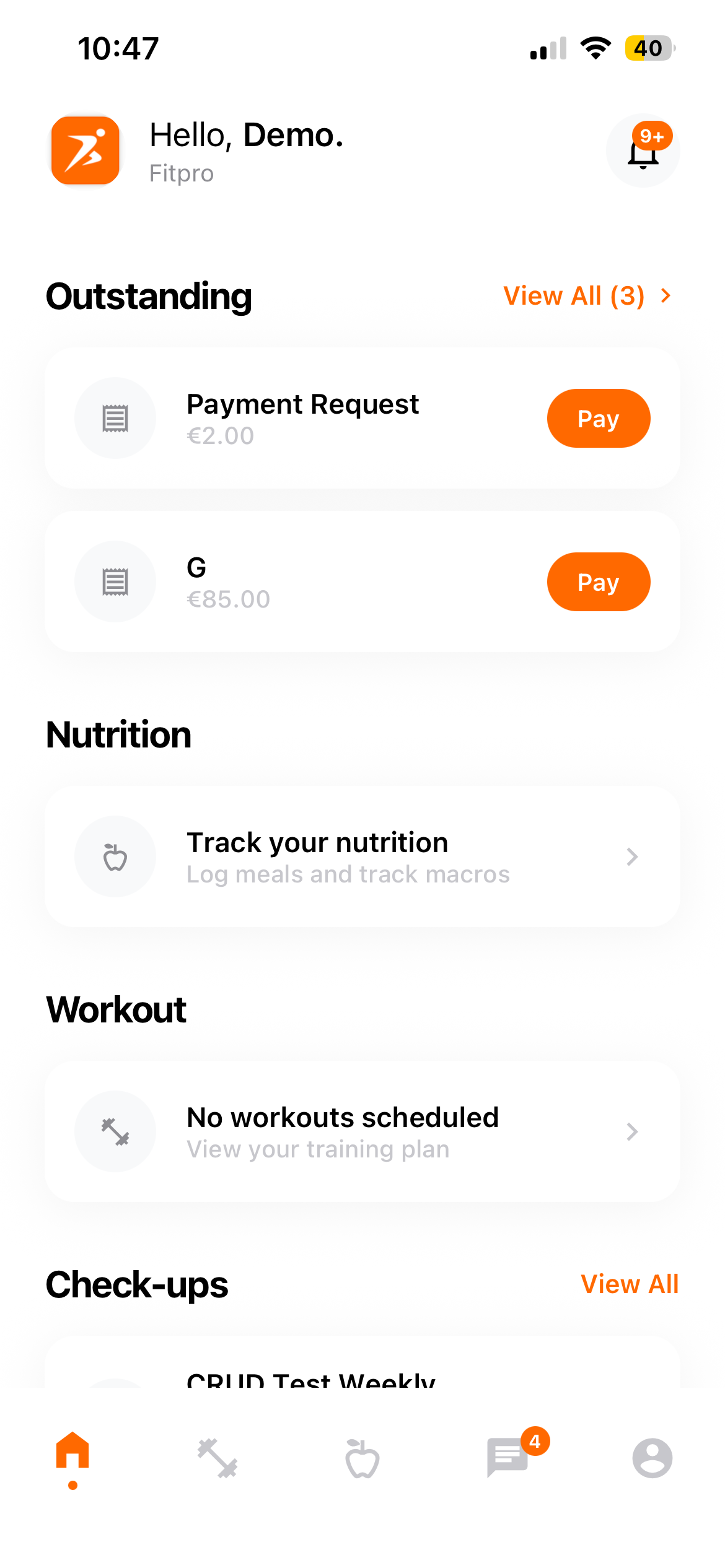
You can use Scraler in the mobile app or in your browser. In the browser, every section below sits in the sidebar. In the app, the main sections are tabs along the bottom (by default Home, Workout, Food, Chat and Profile) and the rest are under Profile. Your trainer can rename, reorder or hide tabs, so your app may look different from the screenshots here.
Getting Started
Your trainer invites you by email. Open the link, create your account with an email and password, complete your profile and start your first workout.
Your Dashboard
Your home screen shows today at a glance. In the app, Home is a feed of cards your trainer arranges for you, like today's workout, your calories, your habits, your next appointment, your cycle and the latest from the community. In the browser you see a weight-progress chart, a workout-activity chart, your training streak and total time, upcoming sessions and your next few workouts.
Workouts
Go to Workouts to see your assigned training plan for the current week. Tap Start to begin a session and log your sets, reps, and weight. History and Progress show your past sessions and exercise progress; in the app they're the two buttons at the top of the Workouts screen. If your trainer has published On-Demand workouts, start one anytime from On-Demand (in the app: tap + on the Workouts screen).
- Sections
- If your trainer split a workout into sections such as Warm-up, Main or Finisher, the section name shows above each exercise while you train, and in the overview, summary and history.
- Fixed program
- If your trainer gave you a Fixed program instead of a weekly plan, it has no dates. Train any day, in any order. One full pass through the program is a round, then the next round starts.
You can also create your own custom workouts if your trainer allows it.
Programs
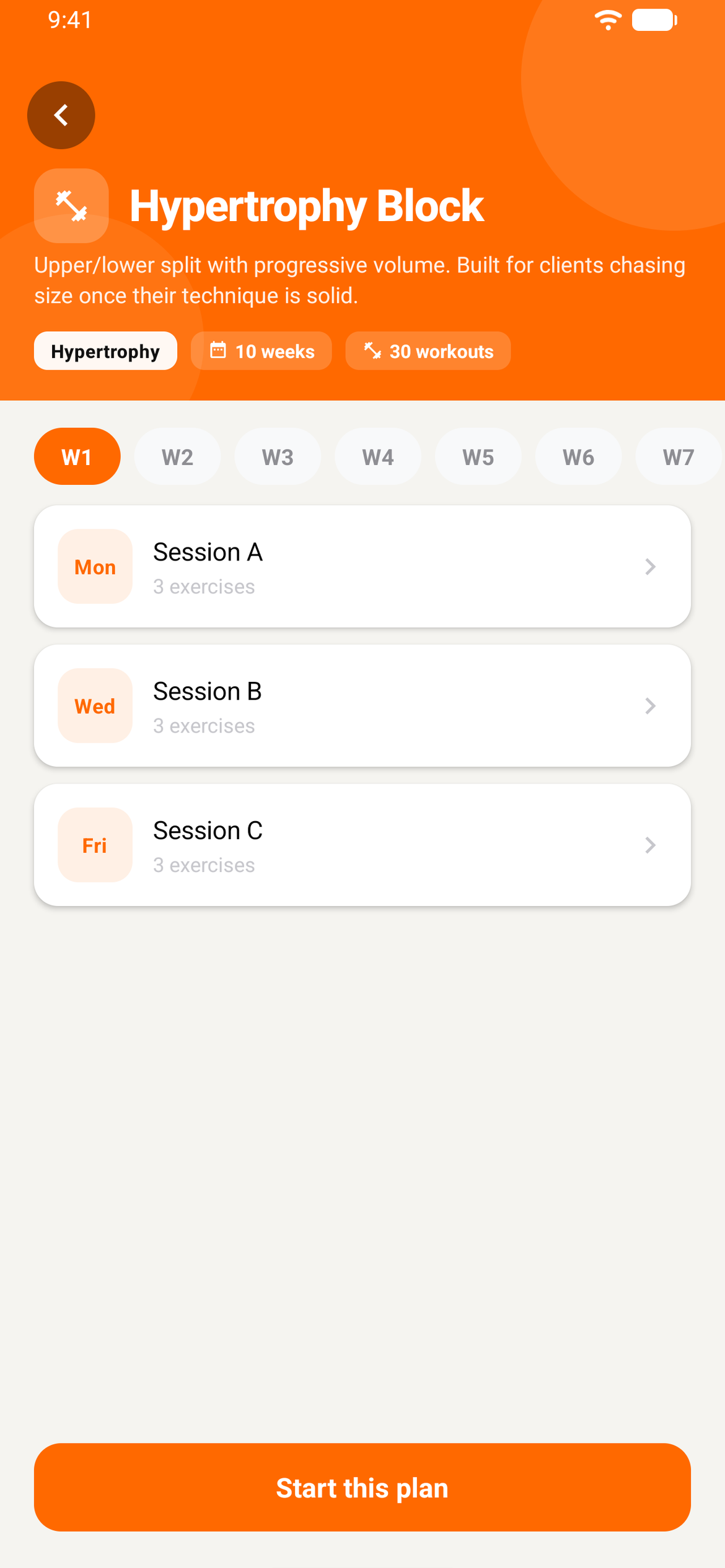
Go to Programs to browse self-paced training programs your trainer has published. In the app, find them on Home or tap Change program on the Workouts screen. Pick one and start it whenever you're ready, on top of the assigned plan in Workouts. Starting a new program while one is active offers to pause the old one first.
Nutrition
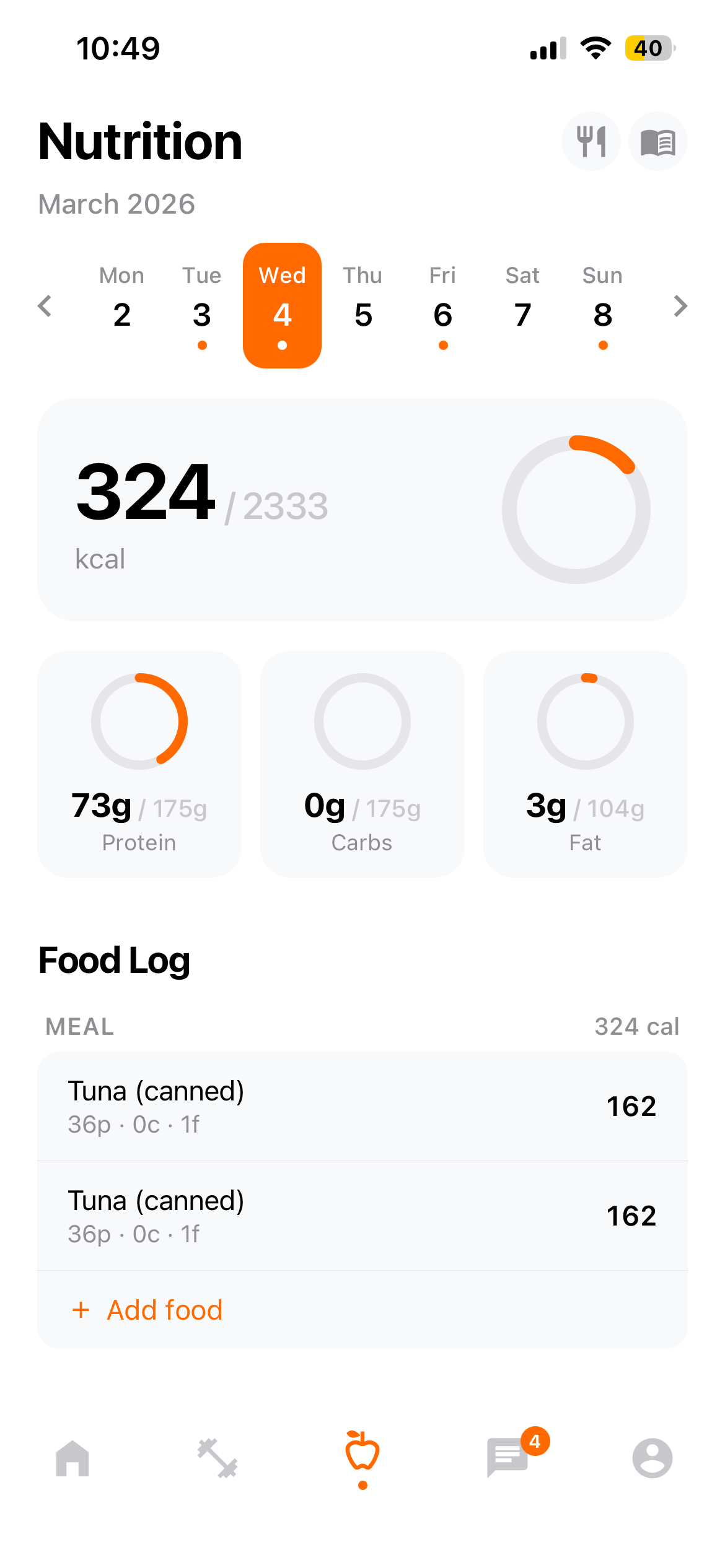
Go to Nutrition (in the app: the Food tab) to view your meal plan for each day. See what to eat, how much, and the calories and macros for every meal, and log what you actually ate. If your trainer uses day types (like Training day and Rest day), pick today's type at the top to see that day's menu.
Check-ins
Your trainer may ask you to check in regularly. Go to Check-ins to answer your trainer's questions, like your weight, progress photos and how your week went. Completed check-ins stay in your history, together with any reply your trainer sends, including video replies.
Chat
Go to Chat to message your trainer directly. Ask questions, share updates, or send files.

Schedule
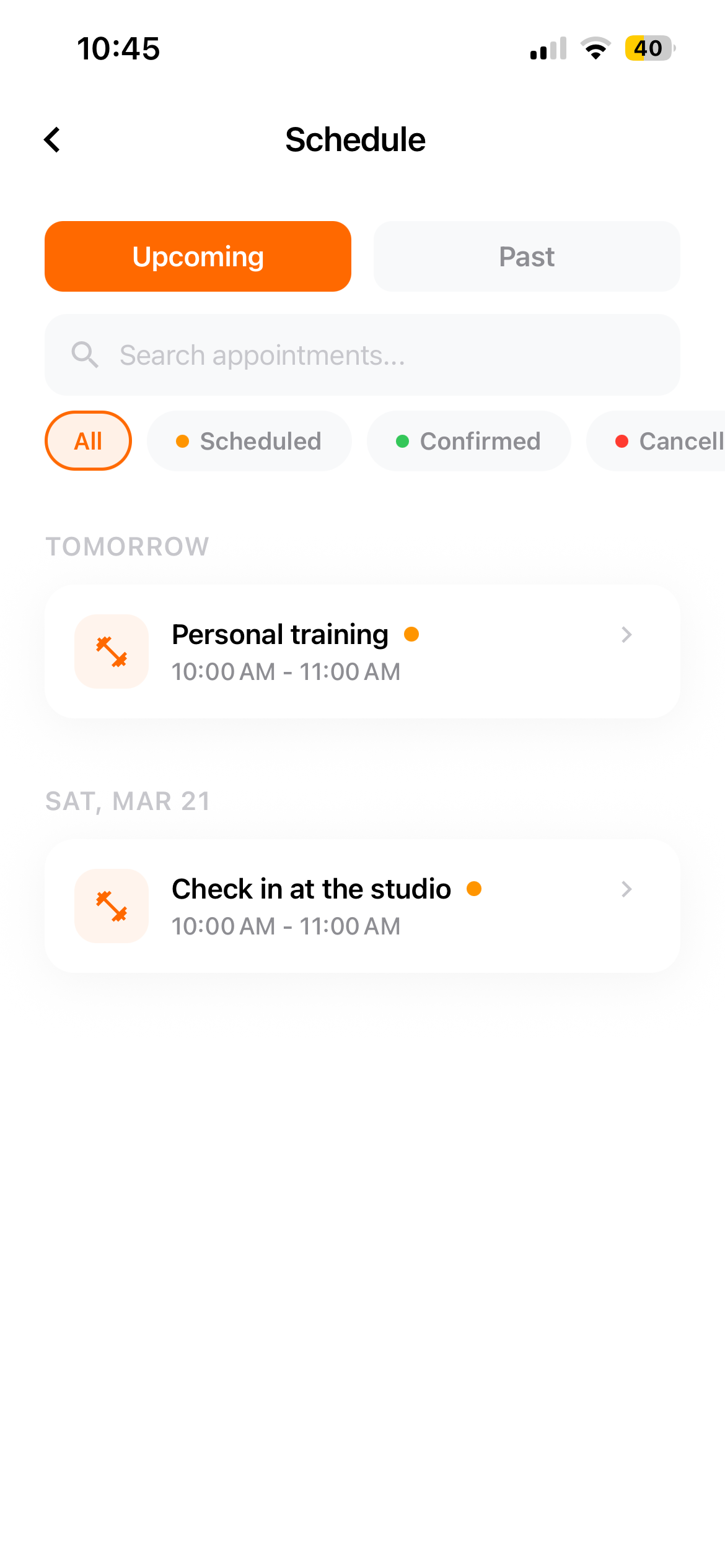
Go to Schedule (in the app: Profile → Appointments) to see your upcoming and past appointments as a list or a calendar. Tap + to book a session with your trainer or add your own event, like work, travel or another sport, so your trainer can plan around it. Cancel an upcoming appointment if needed. Rescheduling is available in the browser version.
Billing
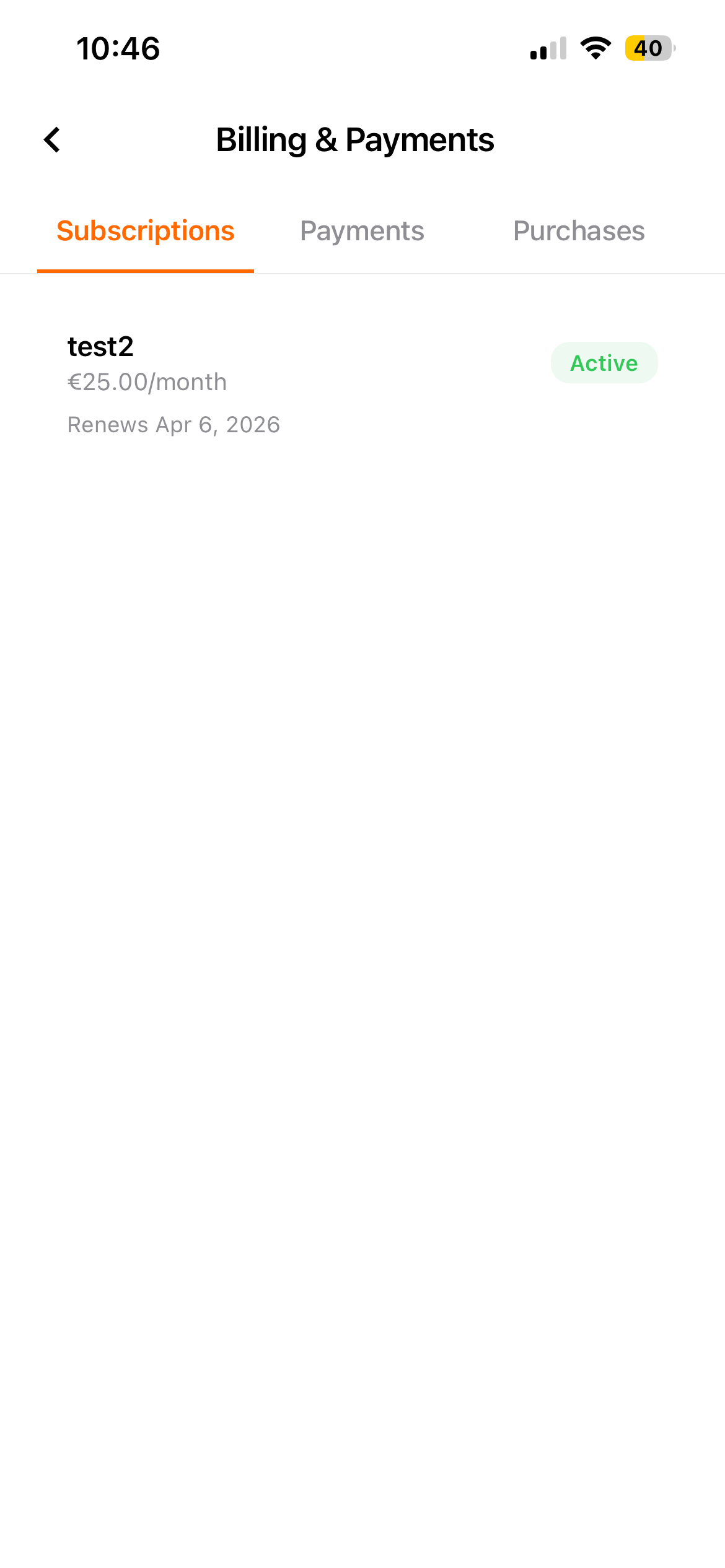
See your subscriptions, payment requests and purchases under Account → Billing (in the app: Profile → Billing & Payments). To download invoices or update your card, open Billing in the browser and use Manage billing.
Community
Go to Community to see posts from your trainer and other clients. React, comment, join polls your trainer creates and see where you stand on the challenge board.
Habits
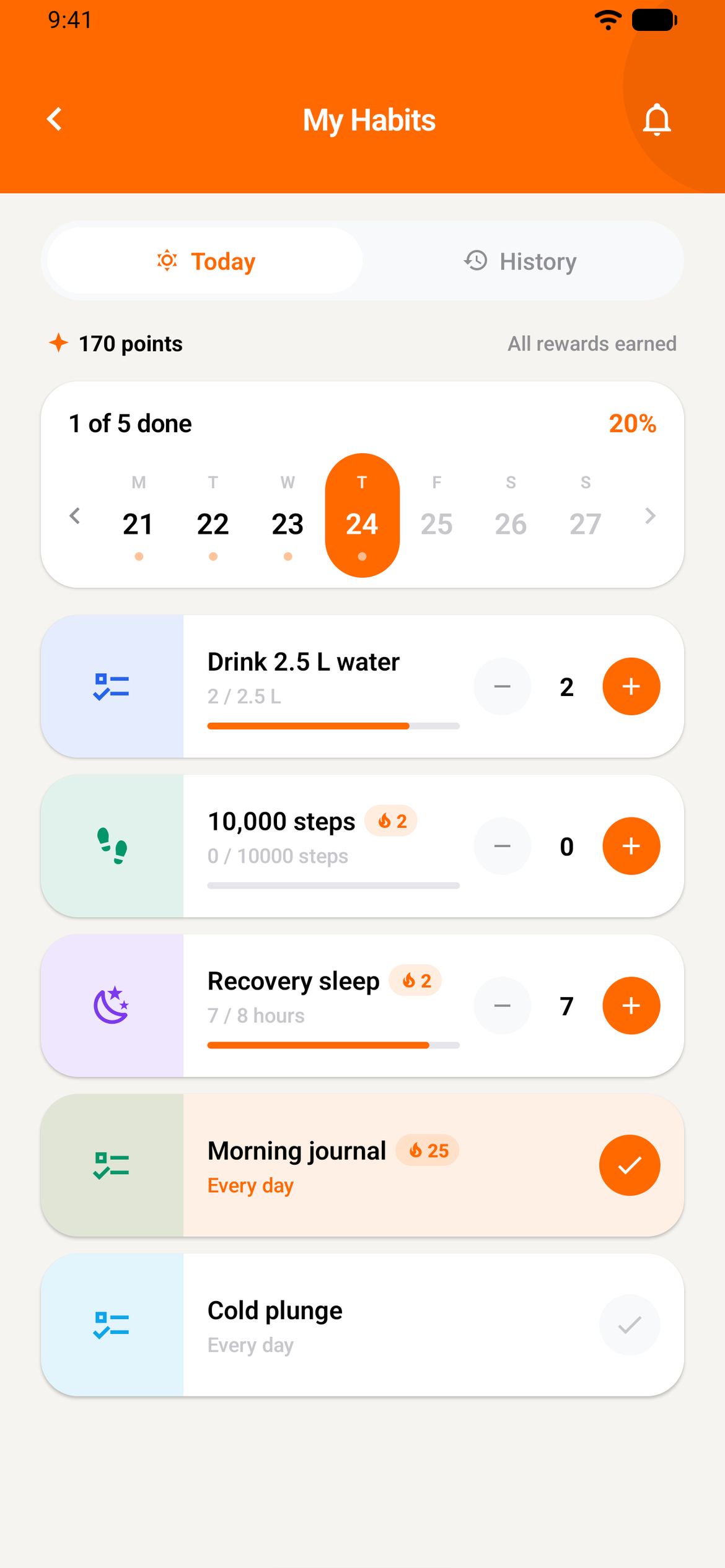
Go to Habits to see the daily habits your trainer has assigned you. Check them off as you complete them.
Progress
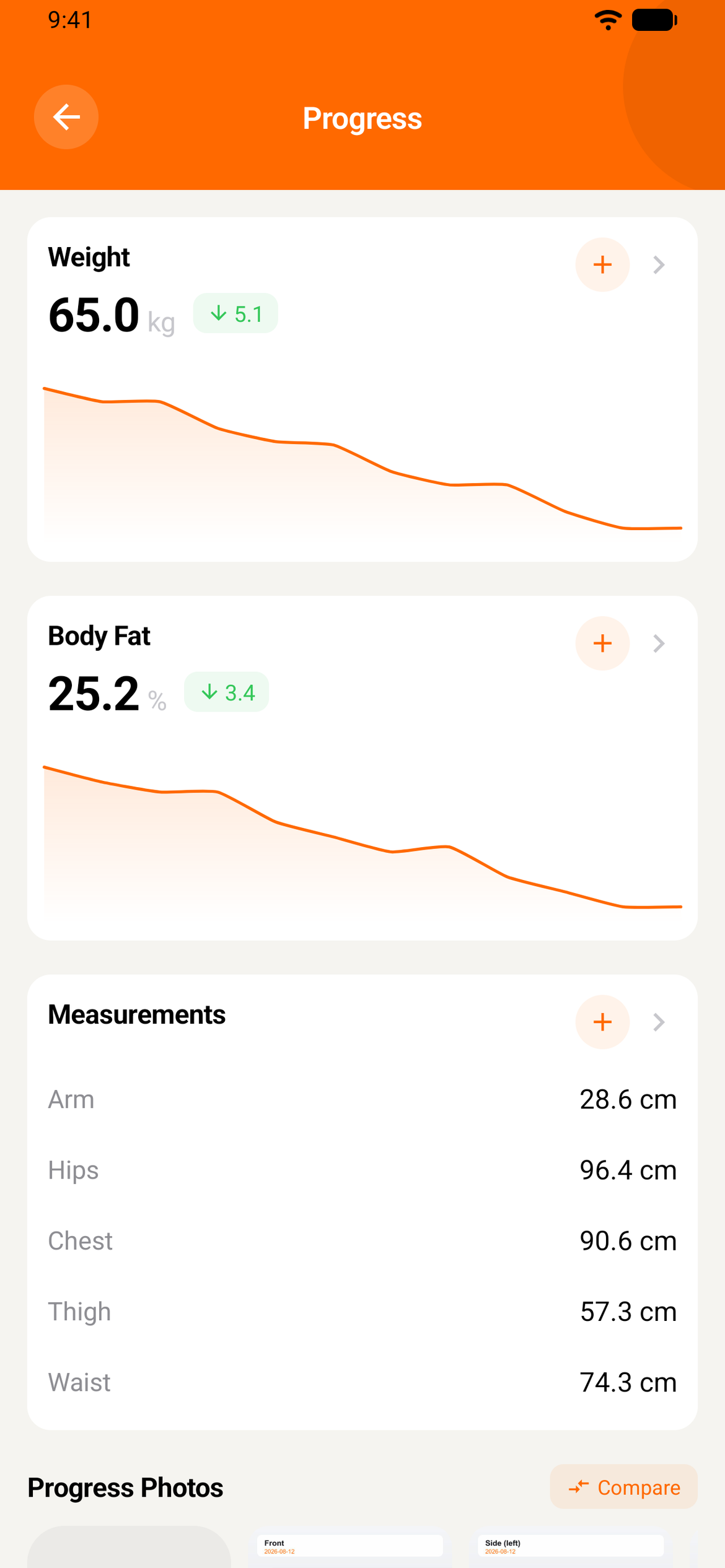
Go to Progress to see your weight and measurements over time, and compare progress photos side by side.
Health and cycle
Apple Health & Health Connect
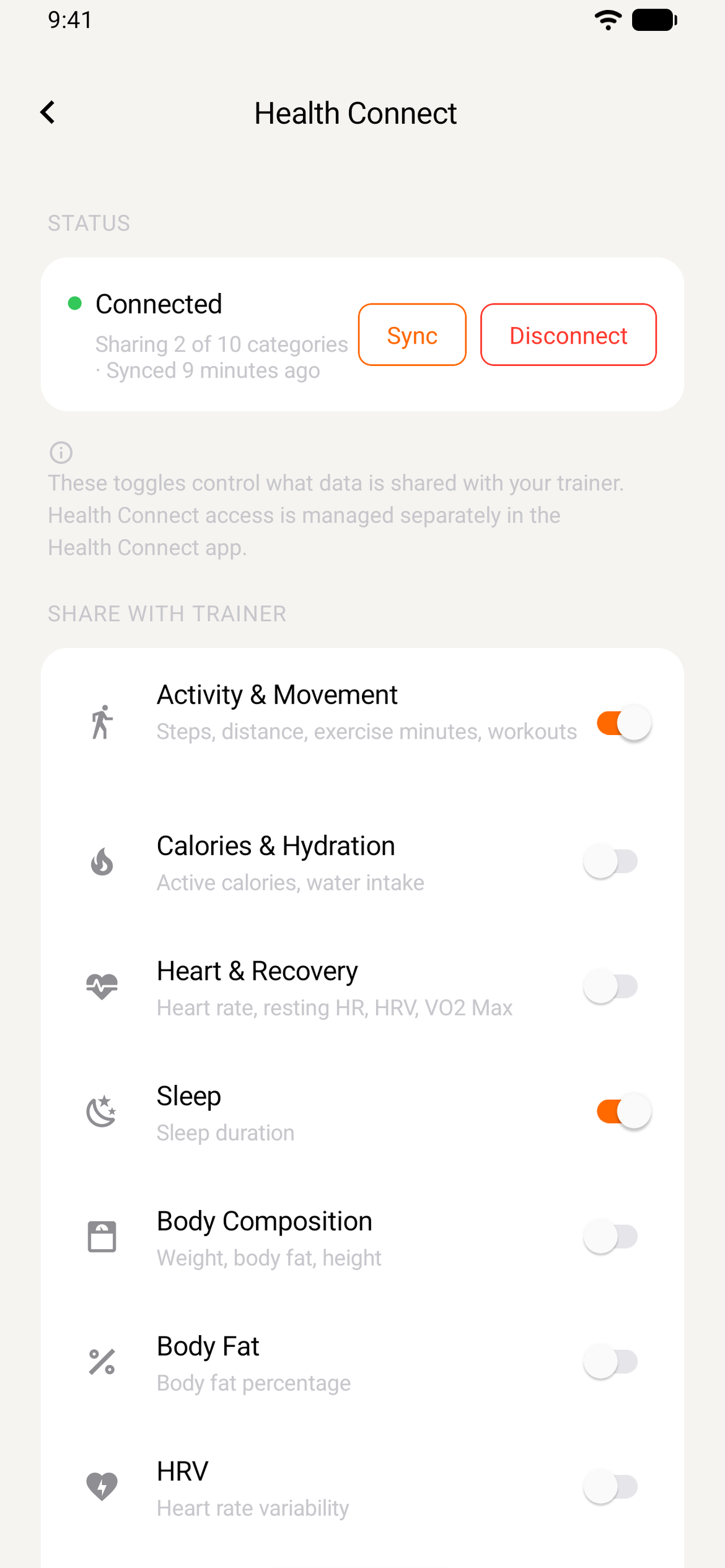
In the app, connect Apple Health (iPhone) or Health Connect (Android) to share data like steps, sleep, heart data, weight and calories with your trainer. Tap the Connect Health card on your home screen, choose what to share and allow access. Your data syncs whenever you open the app. From the health settings you can sync by hand, change what you share or disconnect at any time.
Cycle
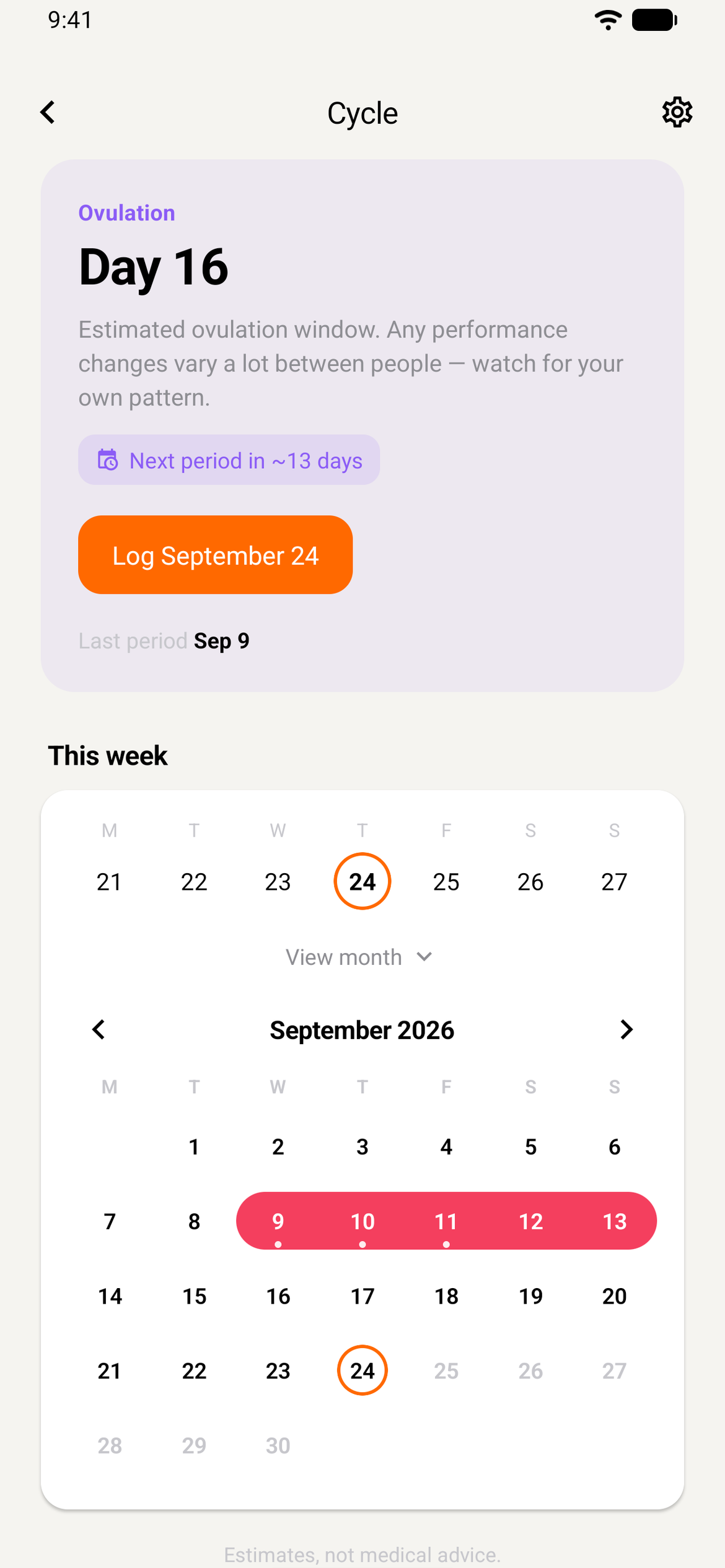
Go to Cycle to log your period and symptoms. Scraler estimates your phases and next period from what you log. Cycle is private by default: choose Private, Phase only or Full to decide what your trainer sees. Period days imported from Apple Health or Health Connect go into your private log, and the same setting decides what your trainer sees.
Resources
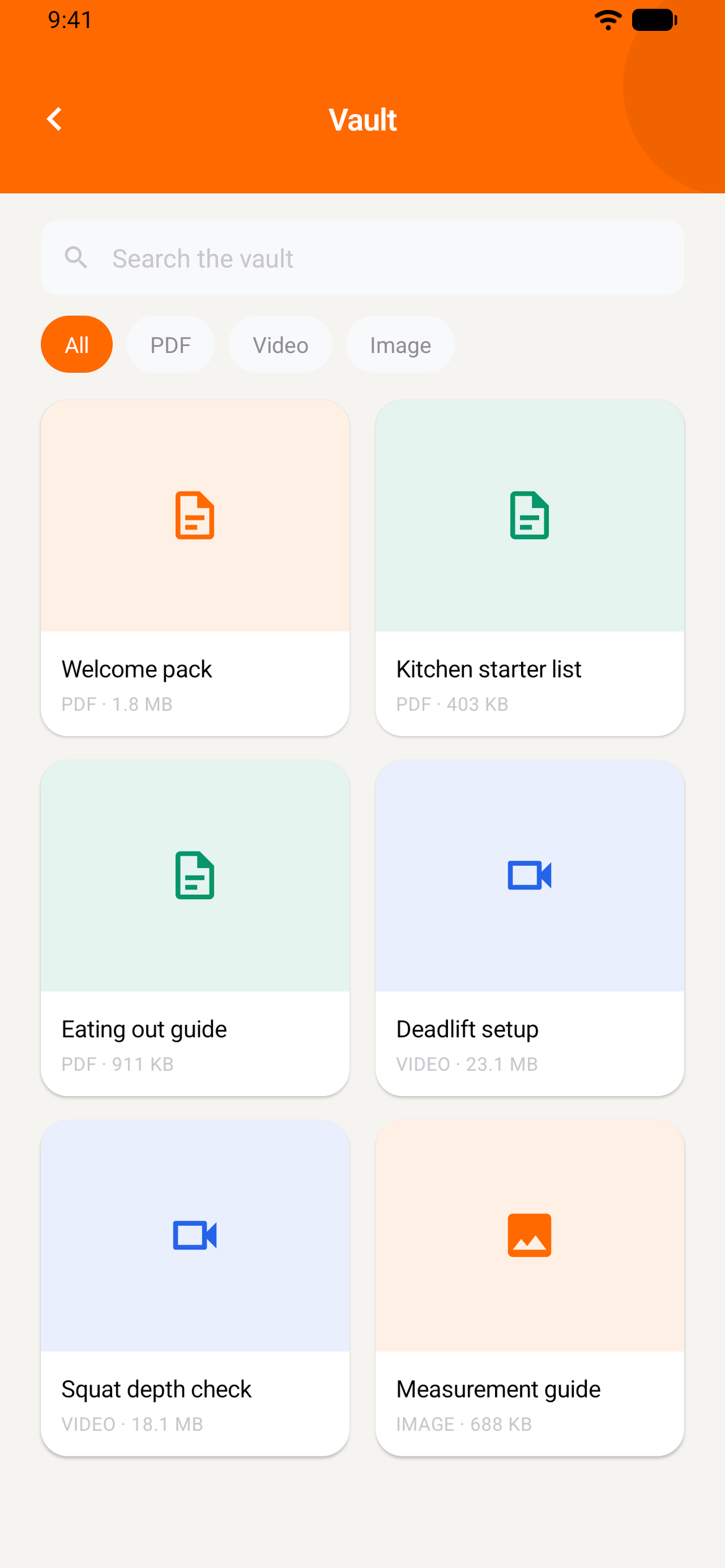
Go to Resources (the screen is called Vault in the app) to see files your trainer has shared with you, like guides, videos, or documents.
Your account
In the app, Profile is where you edit your personal info and language, update your fitness goals and activity level, choose which notifications you get, and change your password or delete your account under Privacy & Security. We email you to confirm a deletion, and it can't be undone.
Depending on what your trainer has turned on, you may also see cookbooks with recipes on your home screen. If you train with more than one coach in the Scraler app, switch between them from your Profile.
Ready to get started?
Download the app or log in on web to access your workouts, meals, and more.
Get Started Free