
My App
Decide what your clients see when they open the app: the home screen, the menu, every page and the style of the whole app.
Your clients' app
My App is where you design the app your clients open every day. The first time, a short setup builds it with you.
The guided setup
It asks what kind of coaching you do, and a few things about your clients. What it knows from your account is already filled in. Choose the pages for your menu, and the photos to use, from your own library.
Pick a look
Then pick a look. You get three that fit your coaching, each drawn in your colour, with your logo and your photos. Add a note for your clients, if you have one.
Your first version
And here is your first version. Nothing is live yet.
Change it with AI
Tell it what to change, in plain words, or tap a suggestion. Not what you meant? Undo it.
The builder
The builder is where you keep going by hand. Every tab of the app is a page: click one to work on it.
The menu
Under Manage, reorder the menu, take a page out, or give a tab another icon. A page without a tab stays in the app: clients open it from Profile, or from its card on the home screen.
Page settings
Every page has its own header and background.
The home screen
The home screen is one list: the app's own cards, and the sections you add. Hide a card you do not need.
Sections and blocks
Add a section, and fill it with blocks: today's workout, the week, program progress, classes, personal records, a leaderboard, and your own text, photos and video. Here, a countdown to the day the challenge starts. A section can have its own background, and a schedule, so it only shows until the date you pick. And your own content: your on-demand workouts, as featured tiles.
Style the whole app
Style sets the look of the whole app. An app style changes colours, corners, fonts and the tab bar in one tap. Every change can be undone, with undo and redo at the top. Pick one of seven tab bars, the shape, shadow and spacing of the cards, and the typefaces, with a separate one for headings. The colours of your brand, the cards and the page are here too.
Templates
A different starting point is always there: eight templates, shown with your own brand. Open one to see it at full size, in your colour and your photos, or in the template's own.
The AI designer
The AI designer stays one click away. Say what you want, or drop in a screenshot of an app you like.
Publish
Publish, and every client gets the new design.
More details and screenshots
My App Premium
Design the mobile app your clients use and publish it straight to their phones. On Ultimate you can also put it in the App Store and Google Play under your own name.
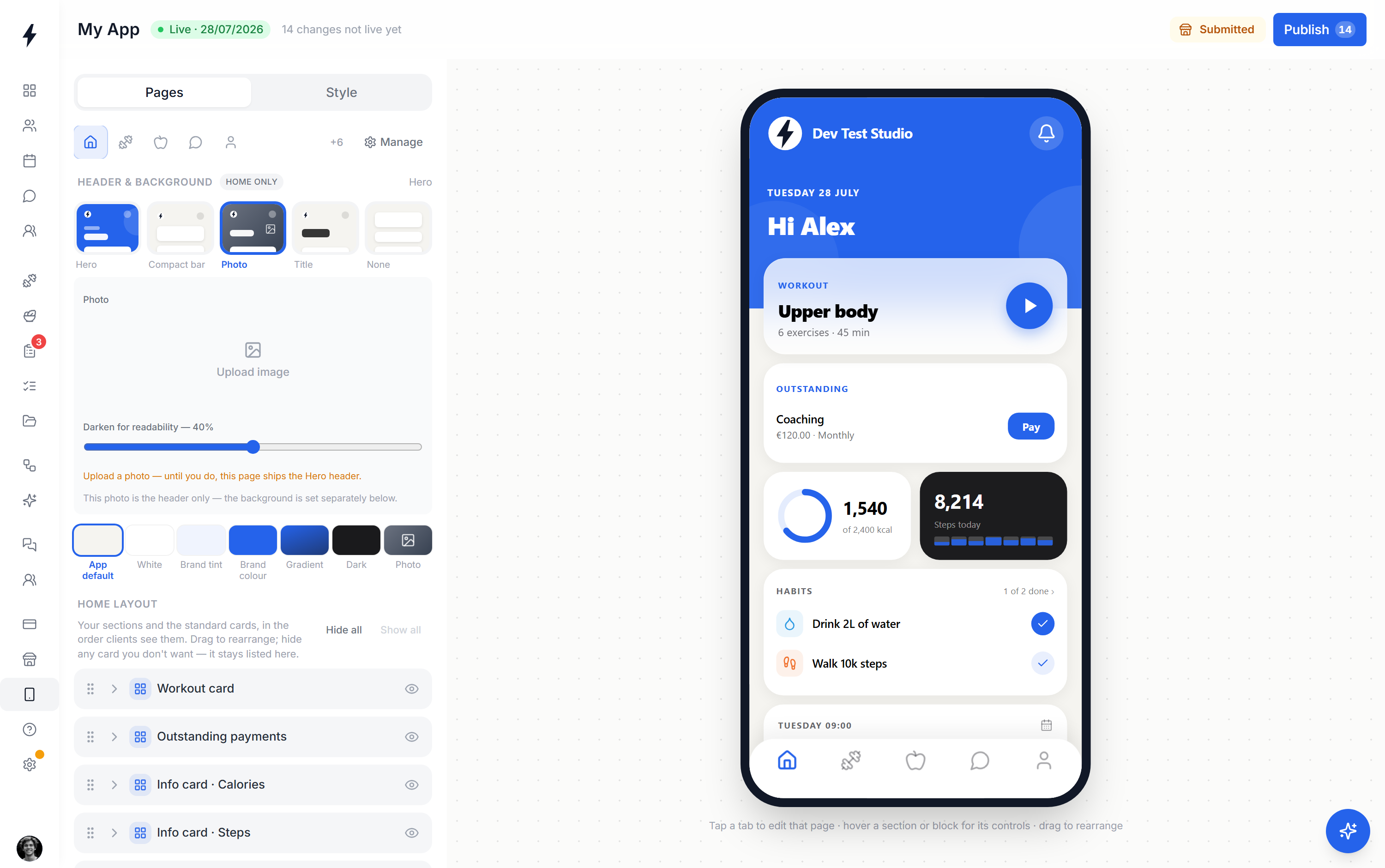
Opening the builder
Open My App in the sidebar of your web dashboard. It is not in the mobile app. The left panel has two tabs, Pages and Style. The phone on the right shows your app with your real content: tap a tab in it to edit that page.
- Draft
- Every change saves to a draft. Your clients keep the last version you published.
- Publish
- Sends the draft to your clients' app right away. No app update, nothing to install. The top bar shows how many changes are not live yet.
- App Store
- Ultimate only. Opens the store wizard (see below). Its label shows where your submission is.
Pages and the tab bar
The icons at the top of Pages are your tab bar. Click one to edit that page. Manage shows every page, in the tab bar and out of it.
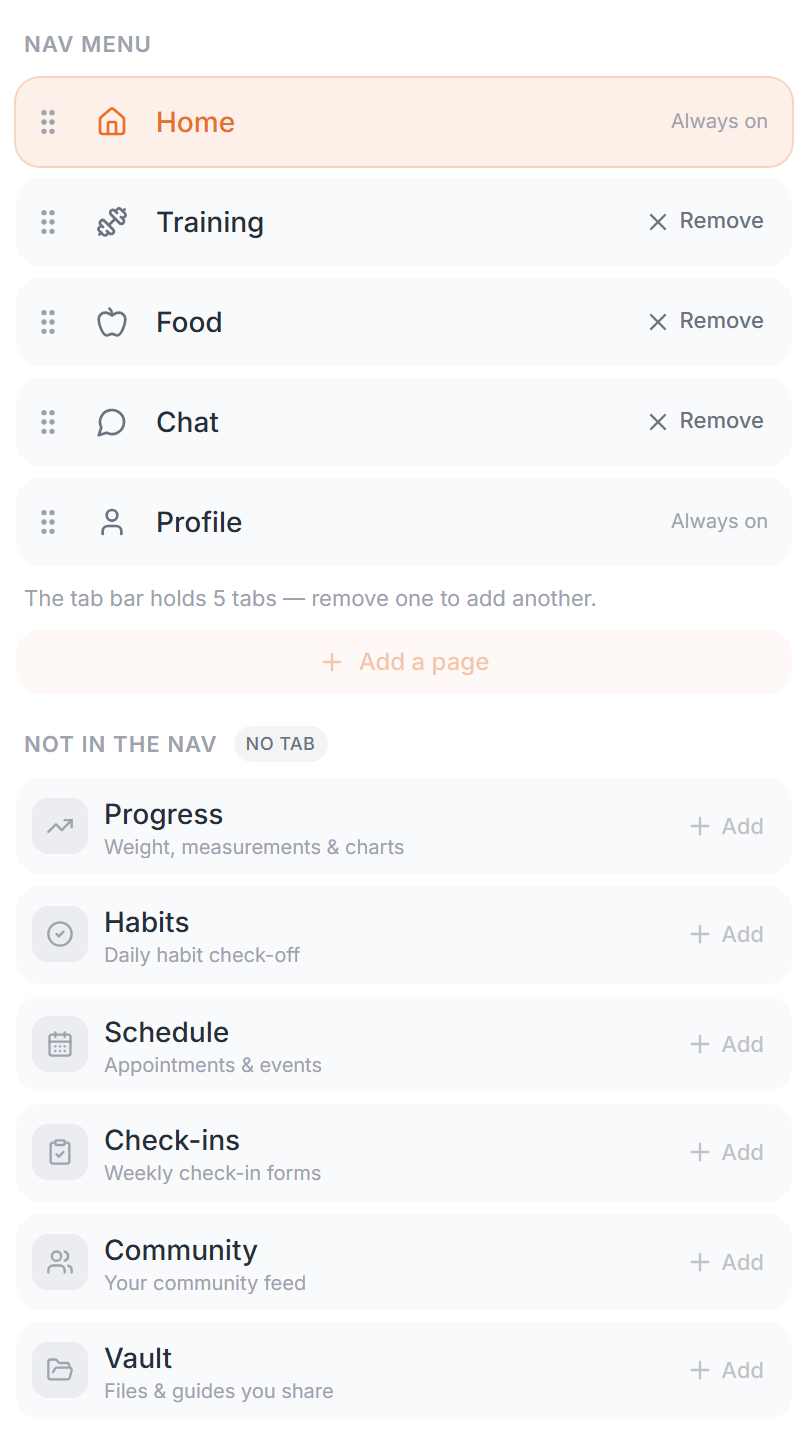
- Nav menu
- Up to 5 tabs. Drag to reorder, click an icon to change it, or Remove a page from the tab bar. Home and Profile are always on.
- Tab name
- Rename any page under Page settings, up to 16 characters. Clients see the new name in the tab bar, on the page itself and in the web app. Use default brings back the standard name.
- Your own page
- Add a page, then Your own page. You can have 2, built from sections and blocks. Removing one deletes it. Removing a standard page only takes away its tab.
Pages without a tab
A page you take out of the tab bar stays in the app, under Not in the nav. How clients reach it depends on the page.
On Profile
Listed on the client's Profile screen, when that feature is on for them.
Home card only
Not on Profile. Without a tab, clients reach these only through the workout, calories and messages cards on Home. Hide that card too and the page can't be opened.
Headers, Home and your own pages
Each page has its own Header & background. Pick Hero, Compact bar, Photo, Title or None, then a page background. Standard pages like Workout offer Hero, Photo and None.
On Home, Home layout lists your sections and the standard cards in the order clients see them. Drag to rearrange. The eye hides a card but keeps it in the list.
Home and your own pages are built from sections and blocks: up to 8 sections per page and 10 blocks per section. Live blocks fill in per client (upcoming workouts, habits, progress, on demand, cookbooks, your trainer card). Content blocks show what you put in them (headings, text, announcements, images, galleries, videos, buttons). A section can have start and end dates.
Style
Style changes every screen at once, standard pages included.
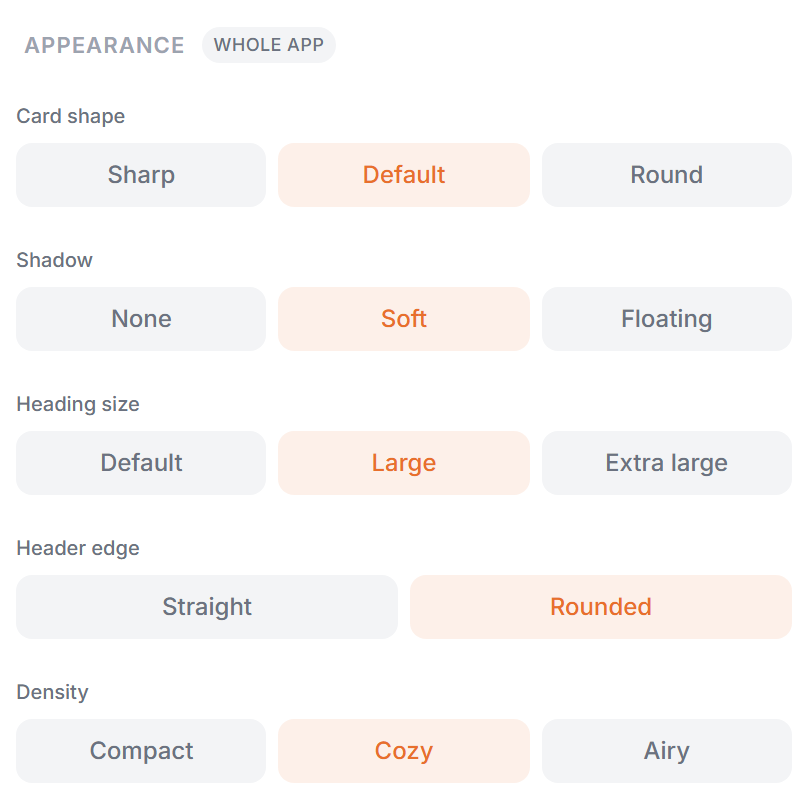
- Heading size
- Default, Large or Extra large, for page titles and headings.
- Header edge
- Straight or Rounded, where the header meets the page below it.
- Card shape
- Card shape, Shadow and Density set the corners, depth and spacing of every card.
- Font
- System, Grotesk, Rounded, Condensed, Serif or Mono, on every screen.
- Colours
- Brand, Cards and Page, plus Card text, Page text and Header text. Brand is your brand colour: publishing applies it to your app, landing page and emails. Reset a text colour for automatic contrast.
- Logo
- Your logo and business name come from Settings, so they match everywhere.
Designing with AI
The sparkle button at the bottom right opens the AI app designer. Describe what you want, like "make it feel premium and minimal", or drop in a screenshot of an app you like. It takes the colours, mood and density, never the other brand. It only edits your draft, and Revert to this point undoes any answer.
Publishing to the app stores Ultimate
On Ultimate, the App Store button in the top bar opens a 4 step wizard. You submit once. We build your app and publish it under your own name.
- 1
Your app. Icon, name, subtitle, Google Play short description and description.
- 2
Screenshots. Pick a style. The four screenshots are rendered from your app design, each with a caption you can edit.
- 3
Apple Developer Account. Invite developer@scraler.com as Admin and upload an App Store Connect API key.
- 4
Ready to submit. Check it over, then send it to us.
After you submit, the page becomes a tracker that updates at every stage.
iOS needs your own Apple Developer account ($99 a year to Apple). Android needs nothing: we publish it from Scraler's Play Console. The iOS setup guide walks you through the Apple side.
If something needs changing, the reason shows at the top of the wizard and a dot appears on My App in your sidebar. Fix it and resubmit.