
Payment requests and coupons
Ask for a one-off payment in seconds, and reward clients with discount codes.
One-off payment requests
For a one-off charge, like a single session, send a payment request.
Create a request
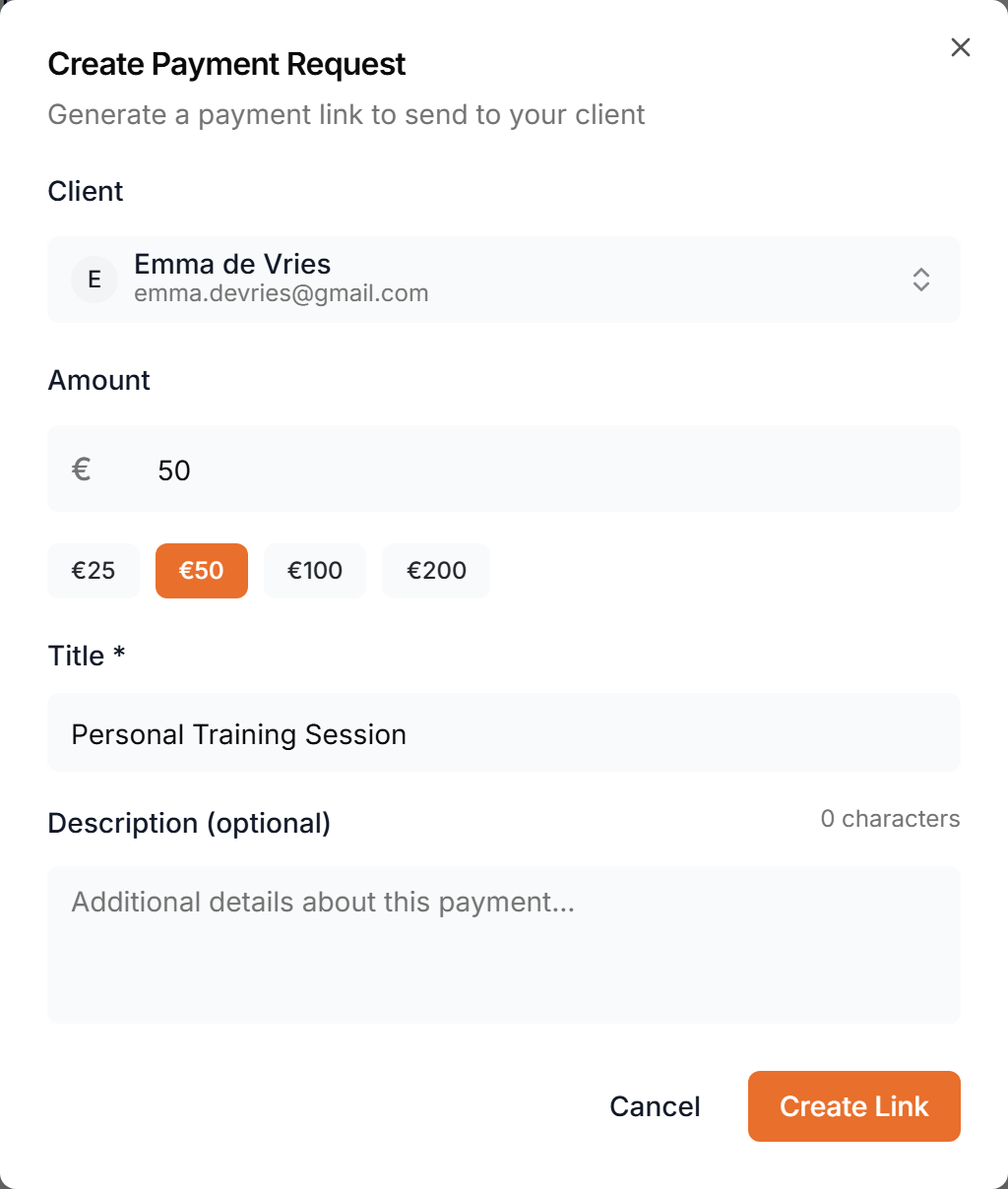
Pick the client, set the amount, and say what it's for. That creates a payment link, and the request appears in your client's app.
Copy the link or remind
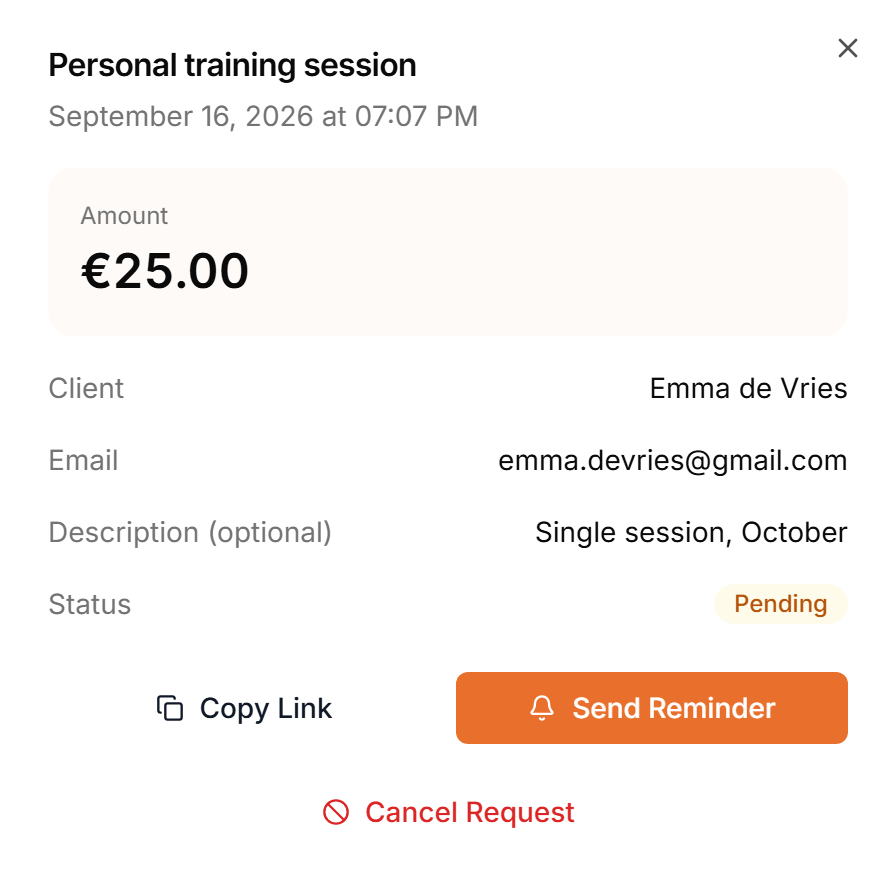
Open a pending request to copy its link again, or to send a reminder.
Paying in the app
Your client sees it on their home screen, opens it, and pays through Stripe's secure checkout.
Paid requests and refunds
Once it's paid, open the request to see it in Stripe, or to refund it.
Coupons
Coupons are discount codes your clients enter at checkout.
Create a coupon
Create one with a code and a discount.
Scope, duration and limit
Choose what it applies to and for how long, and cap how often it can be used. Share the code, and its uses are counted here.
More details and screenshots
Payment requests and coupons
Send a client a one-time payment link, and create discount codes for your offers.
Payment requests need the Premium or Ultimate plan and a connected Stripe account.
Payment requests
Open Finance and go to Payment Requests. The list shows each request with its title, client, amount and date. Search by name and filter by status.
Create Request opens a form. Pick a client, enter an amount (or one of the quick amounts) and a title. The description is optional. Click Create Link. Scraler creates a Stripe payment link and sends it to the client by email and as a payment request card in chat. The client pays on a Stripe checkout page.
Click a request to open it. On a pending request you can Copy Link to share the link another way, Send Reminder, or Cancel Request. A cancelled request can no longer be paid.
The status updates on its own:
- Pending
- Sent, waiting for payment.
- Paid
- The client paid.
- Expired
- The link ran out before it was paid.
- Cancelled
- You cancelled it before it was paid.
- Refunded
- You refunded a paid request.
- Disputed
- The client disputed the charge with their bank.
To refund a paid request, open it and click Refund. Enter the full amount or a smaller one, add a reason if you like, and click Process Refund. The money goes back through Stripe and can take 5 to 10 business days to show on the client's statement. You cannot undo a refund.
Coupons
Open Coupons and click Create Coupon. Each coupon has a code clients enter at checkout.
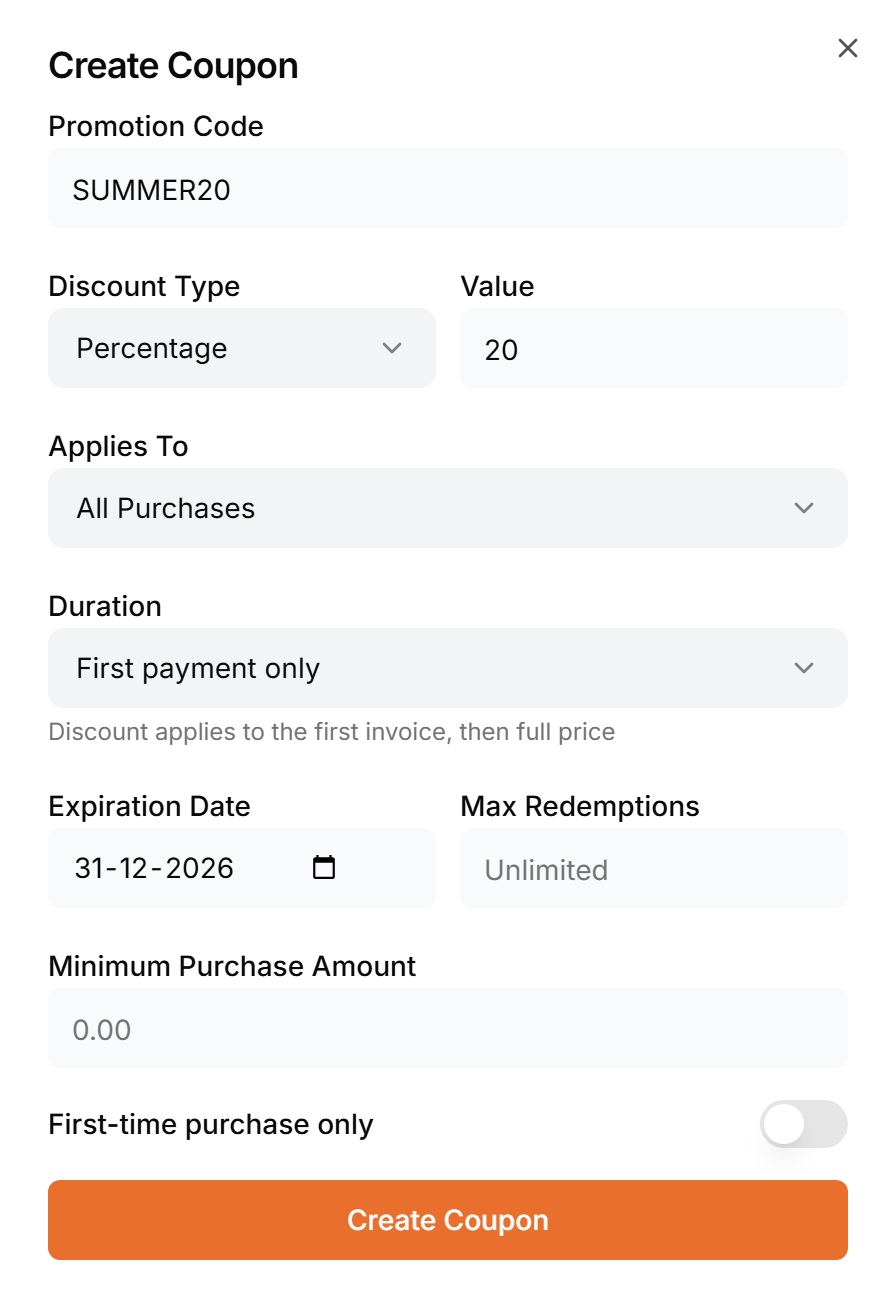
- Promotion Code
- The code clients type, such as SUMMER20.
- Discount Type
- A percentage off, or a fixed amount in your Stripe currency. Enter it under Value.
- Applies To
- All Purchases, Subscriptions, Products or Payment Requests.
- Duration
- First payment only, Every payment, or Multiple months for a number of months. It matters for subscriptions.
- Expiration Date
- After this date the coupon can no longer be used and shows as Expired. The field shows the date in your browser's own format.
- Max Redemptions
- How many times it can be used in total. Leave it empty for unlimited.
- Minimum Purchase Amount
- The smallest purchase it applies to.
- First-time purchase only
- Only for clients who have not bought from you before.
The list shows each coupon with its discount, what it applies to and how often it was used. Click one to copy the code, deactivate or activate it, or delete it. A coupon is Active, Inactive or Expired.